Silk Mobile
Table of Contents (Homepage)
- Overview
- Setting Up
- Getting Started
- How To
- Connecting Devices And Emulators
- Preparing Applications For Testing
- Managing Applications
- Recording Tests
- Working With Test Commands
- Adding Commands To Your Scripts
- Object Commands
- Click
- ClickCoordinate
- ClickIn
- ClickOffset
- Drag
- ElementGetProperty
- ElementGetTableRowsCount
- ElementListPick
- ElementListSelect
- ElementListVisible
- ElementScrollToTableRow
- ElementSendText
- ElementSetProperty
- ElementSwipe
- ElementSwipeWhileNotFound
- GetAllValues
- GetElementCount
- GetElementCountIn
- GetTextIn
- IsElementBlank
- IsElementFound
- IsFoundIn
- LongClick
- RunNativeAPICall
- SendWhileNotFound
- VerifyElementFound
- VerifyElementNotFound
- VerifyIn
- WaitForElement
- WaitForElementToVanish
- GetCoordinateColor
- DragDrop
- Application Commands
- Device Commands
- Web (Hybrid) Specific Commands
- Utilities Commands
- Monitoring Commands
- Configuration Commands
- ExtractLanguageFiles
- SetDefaultClickDownTime
- SetDefaultTimeOut
- SetDefaultWebView
- SetDragStartDelay
- SetInKeyDelay
- SetKeyToKeyDelay
- SetLanguage
- SetLanguagePropertiesFile
- SetShowImageInReport
- SetShowPassImageInReport
- SetShowReport
- SetSpeed
- SetThrowExceptionOnFail
- SetWebAutoScroll
- StartStepsGroup
- StopStepsGroup
- TextFilter
- Miscellaneous Commands
- Controlling Element Identification Rules
- Editing Test Objects
- Executing Test Scripts
- Report Of Executed Test
- Working From Code Environment
- Continuous Integration
- Layout Verification Tests
- Use Device Vitals Monitors
- Troubleshooting
- Terminology
Using JUnit
We will now demonstrate how to export the JUnit4 rendition of our test script to a Java environment, where we will edit and then run it. Once again, the test script being used in this example is that prepared for the eri-Bank application in Session 2.
Perform the following steps:
Step 1: With the test script from Session 2 loaded in the Silk Mobile, click the Code tab directly below the script display.
Step 2: From the popup list, select the language in which the script is to be rendered. In this example, we will choose Java (junit4).
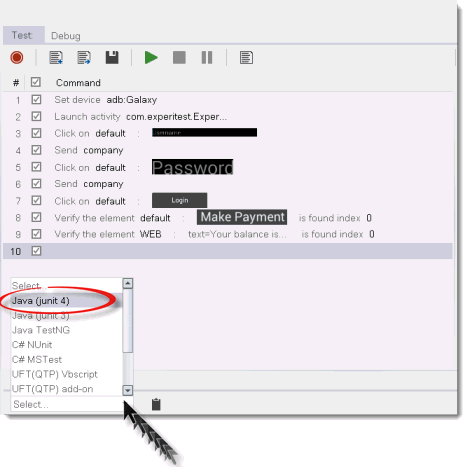
Step 3: Copy the entire junit4 rendition of the script to your clipboard by clicking the Copy to Clipboard icon.
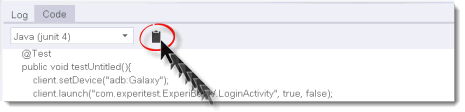
Step 4: Paste the code you have just copied into an Eclipse shell.

Step 5: Within Eclipse, add the Silk Mobile's JARs into the project.
-
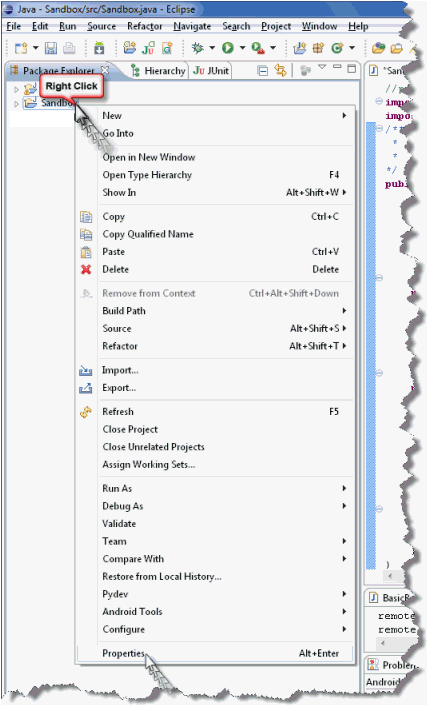
Right-click the project's Sandbox folder and choose the Properties command.
-
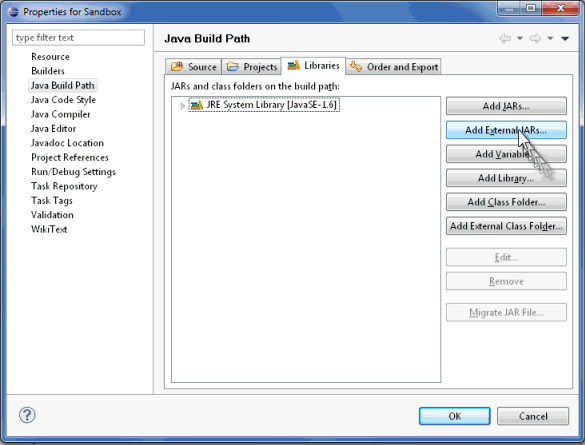
In the Properties for Sandbox dialog box now displayed, select Java Build Path in the pane on the left side of the window and click the Add External JARs button.
-
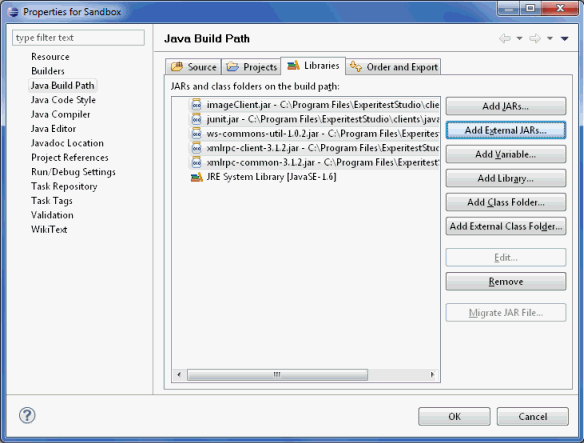
Navigate to the Silk Mobile folder, and from there go to Clients->Java, select all 5 JARs, and click OK.
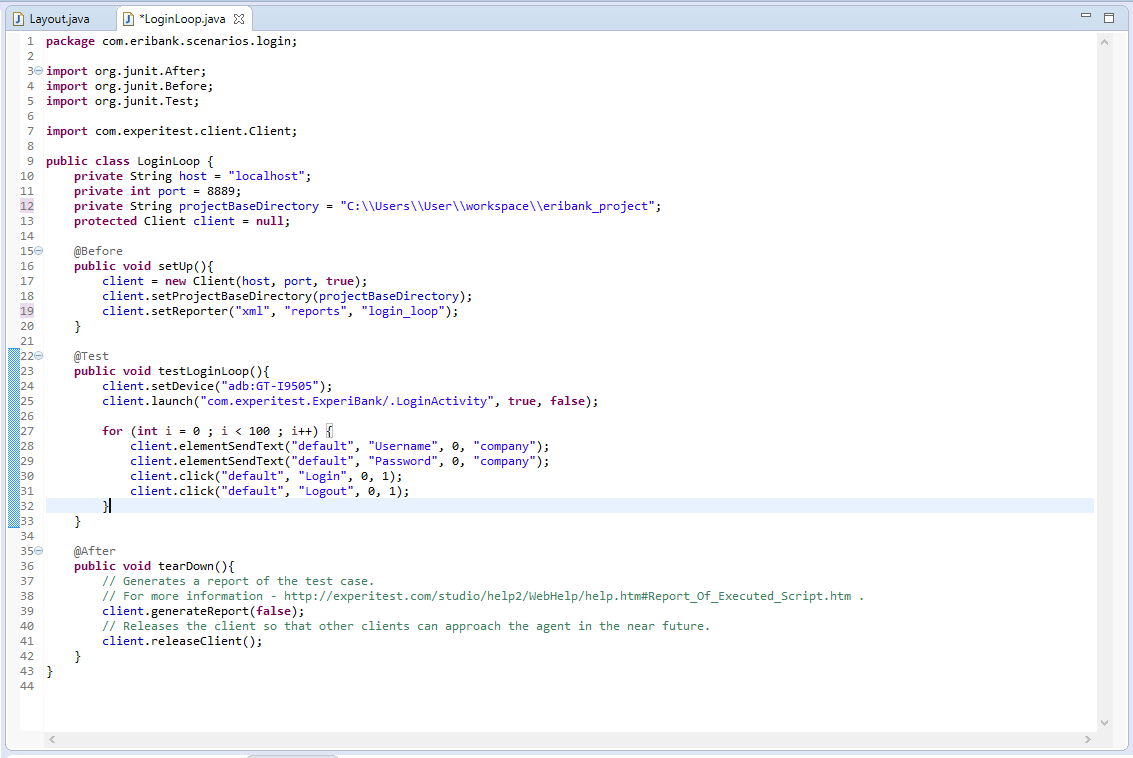
Step 6: Modify the JUnit4 rendition of the test script, creating a loop which will cause the test to be run 100 times, as depicted below.
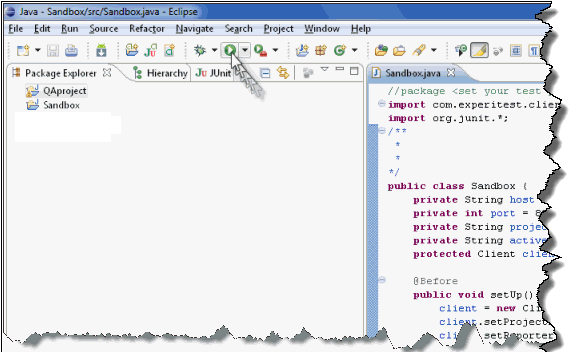
Step 7: Run the test by clicking the Play button. (If necessary, change the value of the public class so that it will match the class name.)